What the Chat Window Can Show
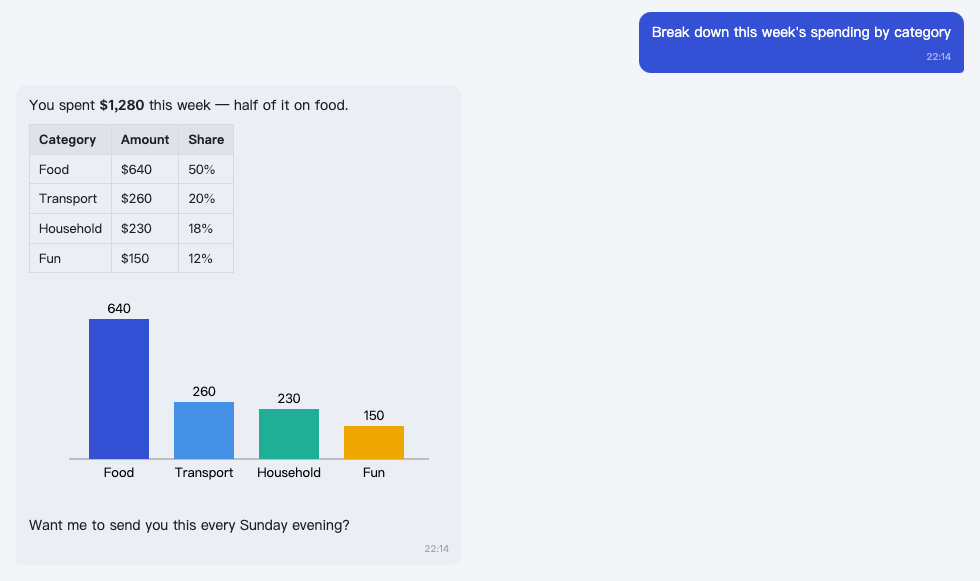
A persona's replies aren't limited to text. The chat window can draw tables, charts, flowcharts, formulas, and animations directly, and it can show forms with input fields and buttons.
You don't need to learn any special syntax — just tell it what you want to see.
Tool calls are hidden by default
The tools a persona calls while working are not listed line by line in the chat by default; the status bar at the bottom of the window shows what it's doing. To see them, open Settings → General → Tool calls and check Show in the conversation. Tips on the same page controls the usage tip shown at each startup — turn it off, or click Show one now.
Tables
List this week's expenses by category in a table.
Good for comparisons, lists, and ledgers.
Charts
Draw a bar chart of my spending each month over the last six months.
Show my weight trend with a line chart.
Bar charts, line charts, and pie charts are all supported.
Flowcharts and diagrams
Draw a flowchart of the steps for filing an expense report.
Draw a diagram showing how these personas divide up the work.
Formulas
Write out the compound interest formula and explain each variable.
Math and physics formulas are typeset properly.
Graphics and animation
Draw a diagram of the solar system, with the planets orbiting.
Good for explaining how something works, or for demos.
Forms and buttons
When it needs you to fill something in or make a choice, the persona puts input fields, dropdowns, radio buttons, checkboxes, and buttons right in the chat — just click, no typing needed. For example:
Set a reminder for me — ask me for the time and what it's about.
It will pop up a small form asking for the time and details, with a button to submit.
Widgets
For an interface you want to keep around — an expense tracker, a to-do board, flashcards — have it turned into a plugin. Plugins can be pinned to the side of the window and opened any time.